Conversation Intelligence
Last updated: February 20, 2026
The Conversation Intelligence feature enables automatic audio recording, transcription, and AI-generated summaries during lead capture. This feature is available on the mobile app and helps enrich submissions with contextual conversation data.
Enabling Conversation Intelligence
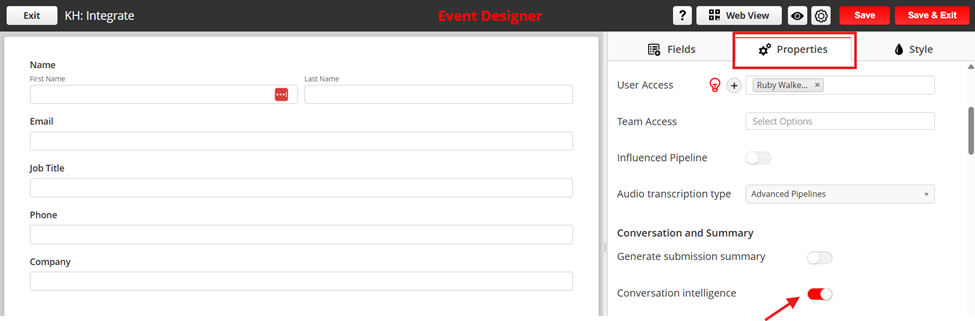
From the Web App, navigate to Events > Capture.
From properties, scroll down to the Conversation Intelligence section.
Enable the Conversation Intelligence toggle.
Once enabled, additional configuration options are displayed.
Configuration Options
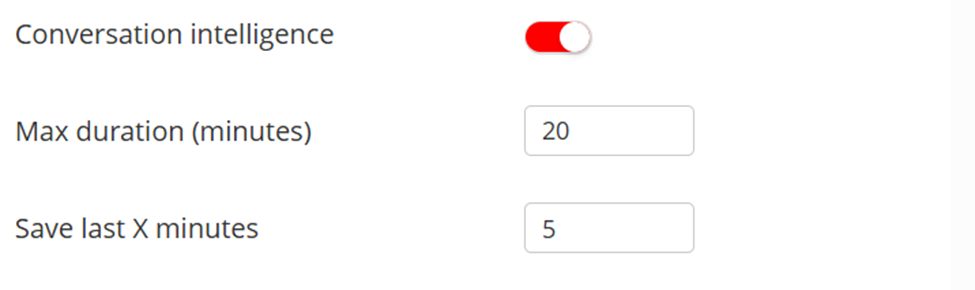
Maximum Duration
Defines the maximum conversation duration retained by the device.
The maximum supported duration is 30 minutes.
If a conversation exceeds this limit (e.g., 1–2 hours), only the last 30 minutes are retained.
Default value: 20 minutes
Adjustable up to 30 minutes.
Save Last X Minutes
Specifies how much of the retained conversation is saved with the submission.
You can save the last 2 minutes, 3 minutes, or up to the full retained duration.
Default value: 5 minutes
Adjustable up to the full configured maximum duration.
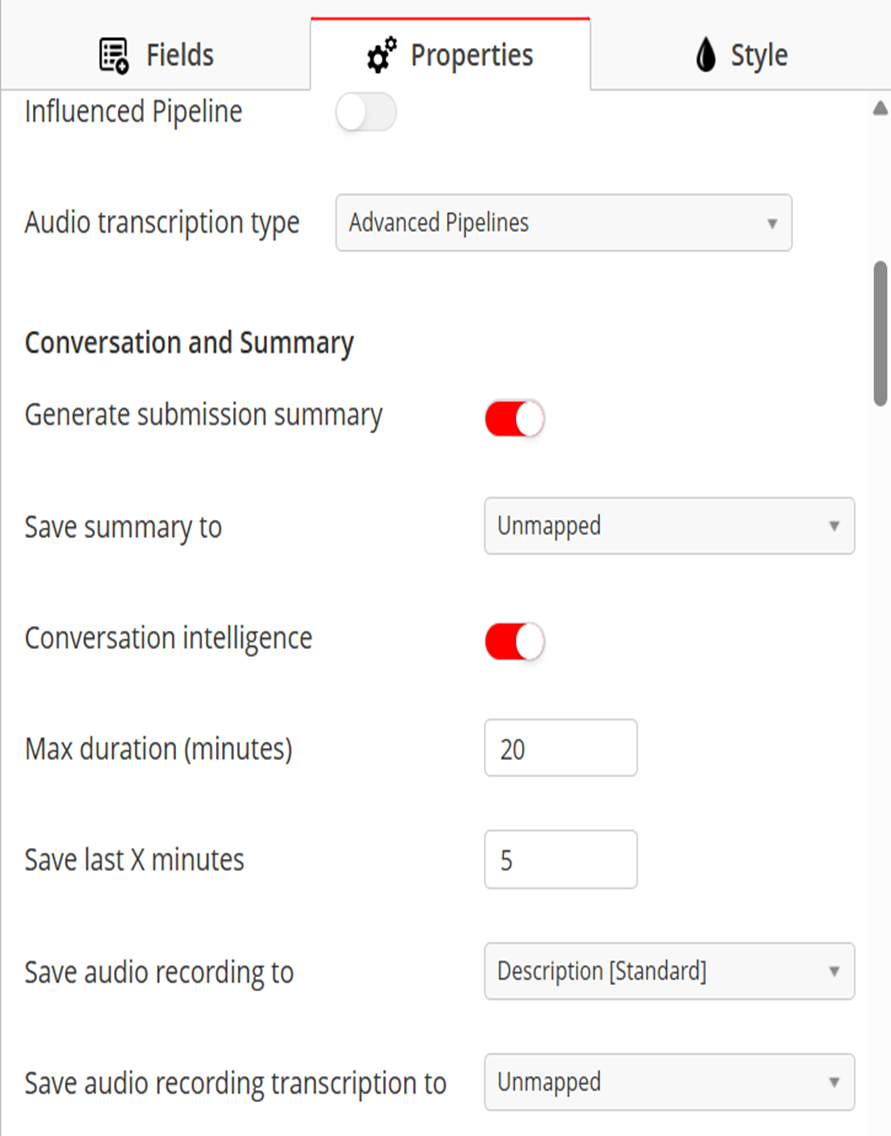
Save Audio Recording
Allows saving the audio recording link from the conversation. The recording can be mapped to a Captello field.
Save Transcription
Allows saving the text transcription of the conversation, and the transcription can also be mapped to a Captello prospect field.
Note: This is useful for CRM Integrations, since data is mapped from Prospect fields.
Save audio recording: Saves the link to the audio file to a prospect field.
Save audio recording transcription: Saves the transcription of the audio
Using Conversation Intelligence (Mobile App)
Once enabled, a Conversation Intelligence section appears in the mobile app home screen.
Available Controls
Start Recording / Stop Recording: Starts or stops the conversation recording.
Info Icon: Displays a recording notice to ensure legal compliance. It also confirms that the recording is legally obtained with approval from all parties.
Pulse Icon: Indicates whether a recording is currently in progress.
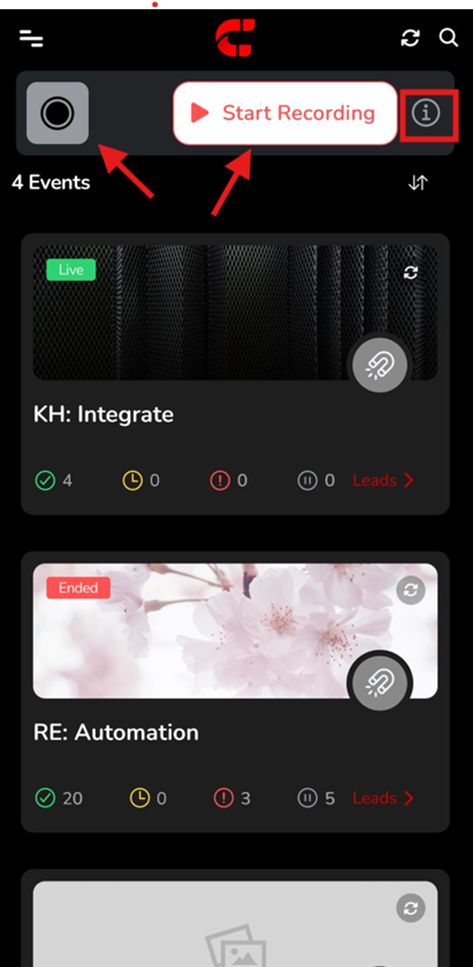
Recording During Form Submission
Click Start Recording from the Start Recording button on the home screen to begin a conversation recording.
Open a form that has Conversation Intelligence enabled.
A visual indicator, including the waveform and pulse icon, appears to confirm that a conversation is in progress and recording is active.
Note: There is no Start Recording button displayed within the form itself. Recording must be initiated from the home screen before opening a form with Conversation Intelligence enabled.
Hiding or Showing the Recording Panel
Clicking on the Pulse icon allows the hiding or displaying of the section
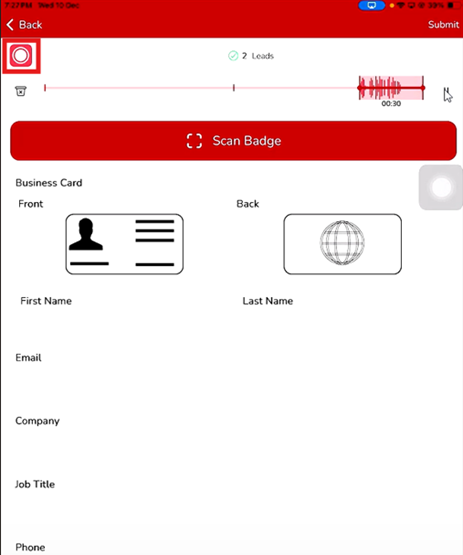
Pausing, Trimming, and Managing Recordings
You can pause the recording at any time and Tap Resume to continue recording.
Trimming the Conversation
While paused, you can trim the recording:
Use the left and right handles to select the desired portion.
The left side represents the start of the recording.
The right side represents the most recent portion.
Only the selected segment will be saved with the submission.
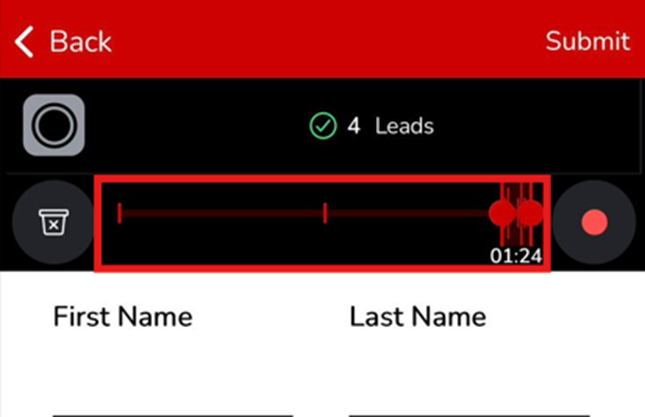
Delete Recording: Select Delete to discard the current recording.
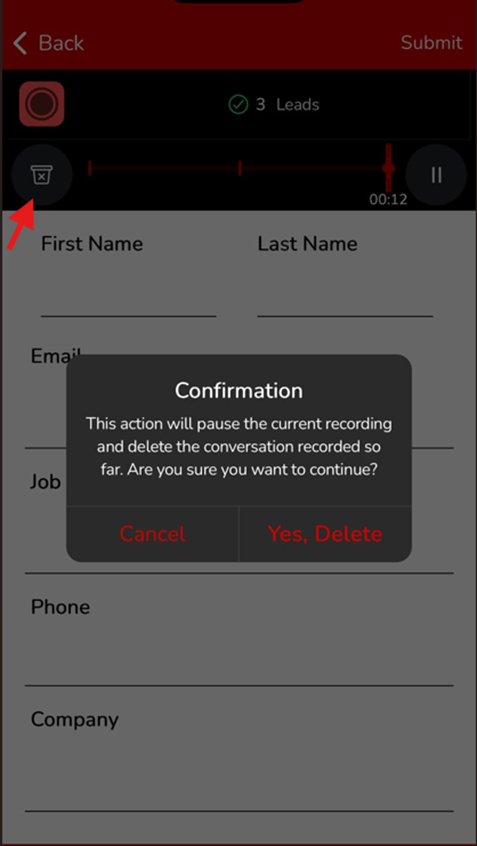
Reset Conversation
Use Reset to remove the conversation associated with the current submission. After resetting, you can start a new conversation.
Viewing Conversation Intelligence in Submissions from Mobile App
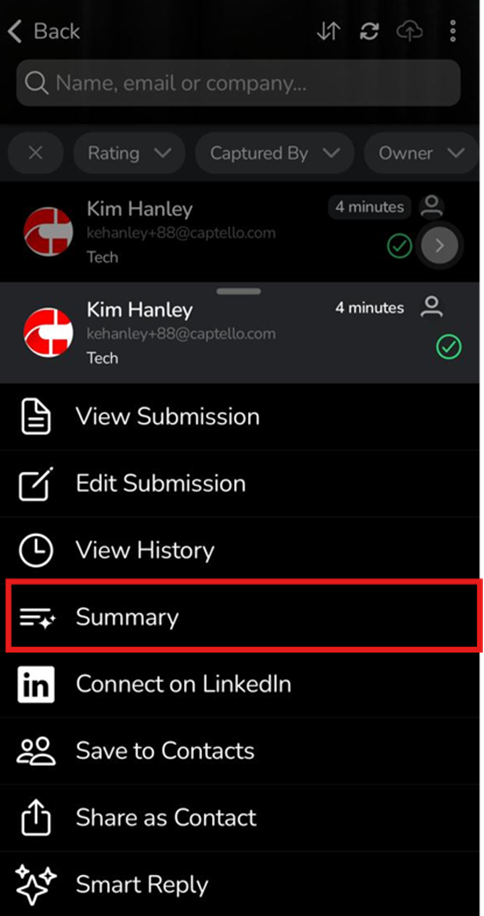
Tap the Submissions (green) icon on the desired form, and select the intended lead from the list.
Tap Summary to view the conversation details, including the AI-generated summary, audio recording, and transcription.
Summary Tab
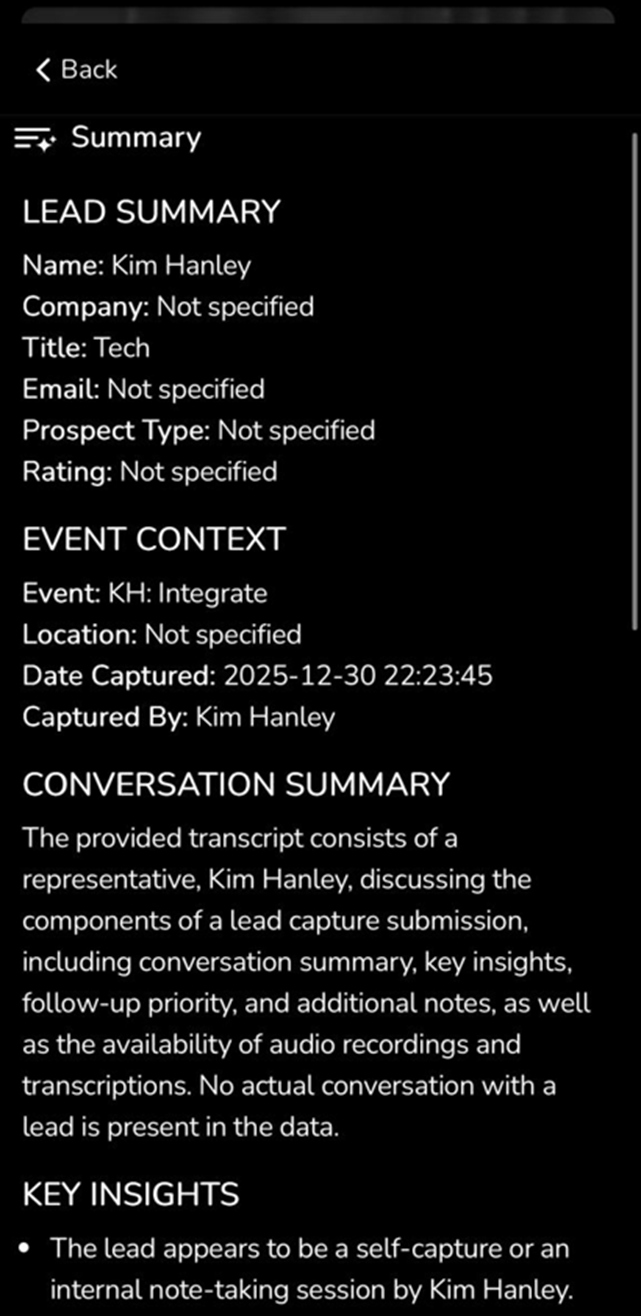
Displays the AI-generated summary, including: Conversation summary, Key insights, Follow-up priority, and any additional notes
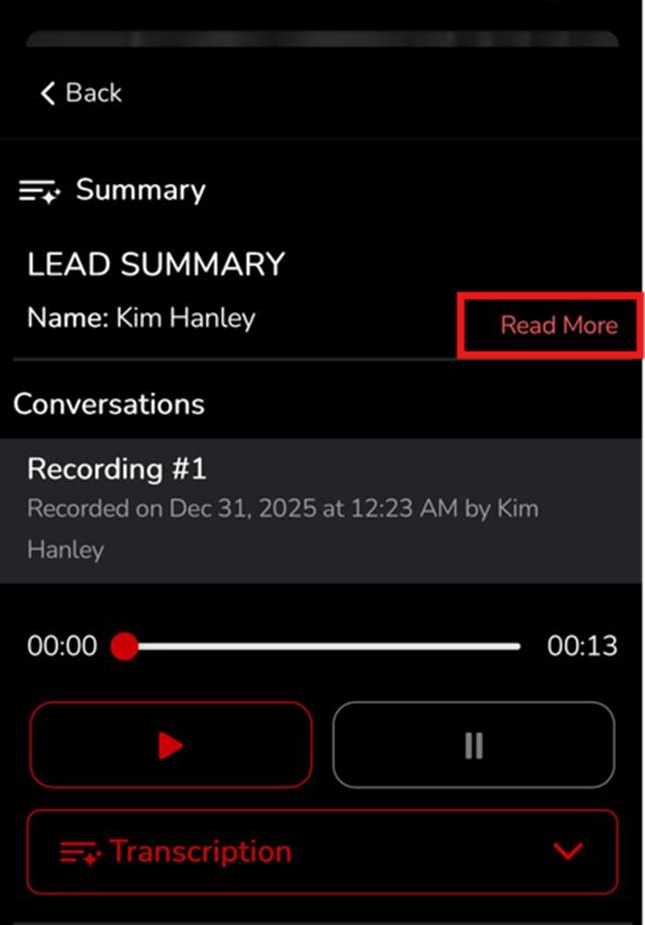
Note: Click Read More to expand the summary.
Audio and Transcription
The audio recording and transcription are displayed in the Conversation Intelligence section.
If the recording was trimmed, only the selected portion is shown.
Multiple Conversations
If multiple recordings exist (e.g., form conversation and audio recording element), each conversation and transcription is displayed in a separate section.
Ratings and Event Notes
If a rating was added, it appears in the summary.
Any event notes added to the event note element during the interaction are also displayed, including timestamps.
Viewing the Summary (Web App)
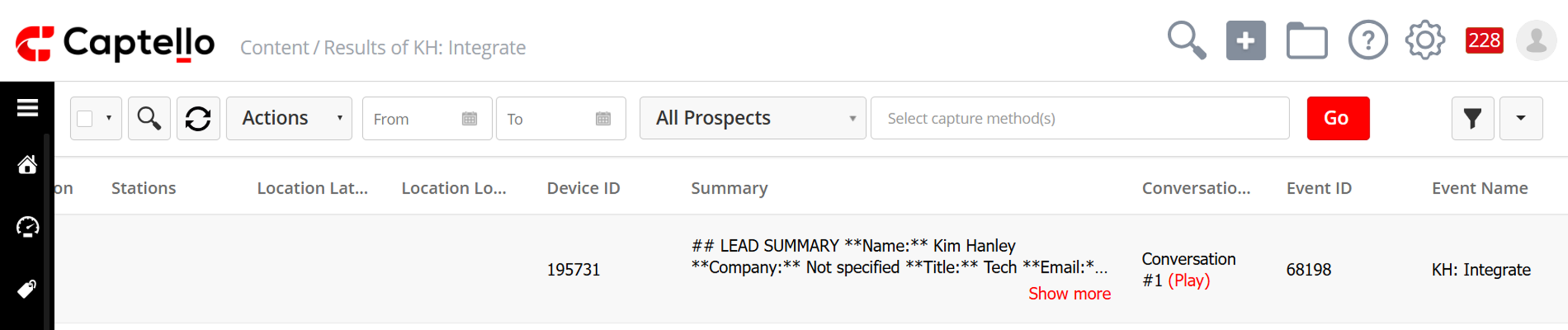
Click the number of submissions next to the intended event.
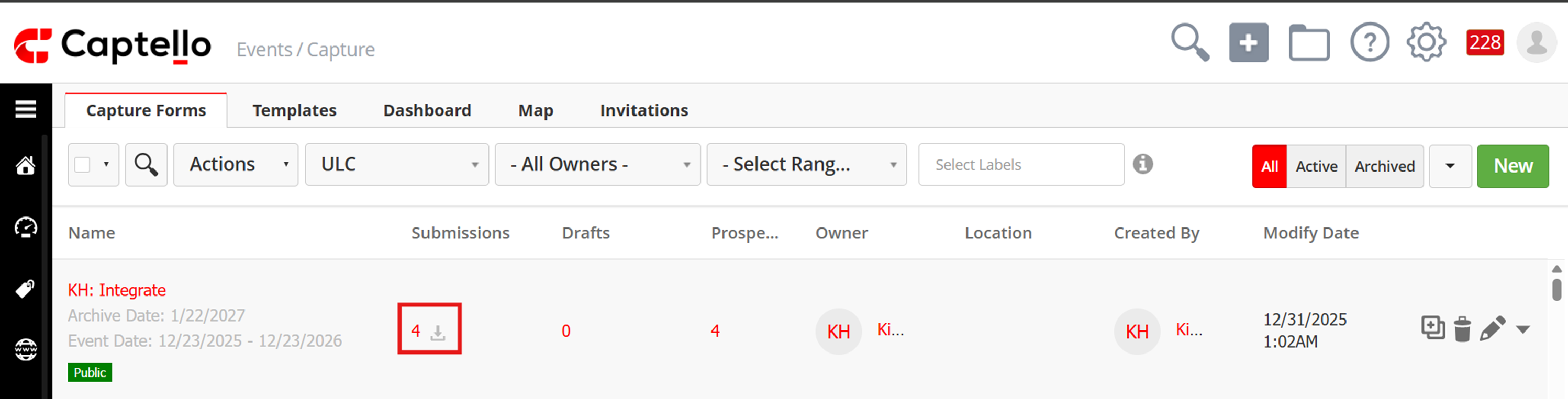
Click the drop-down button next to the lead on the left-hand side.
Select Summary
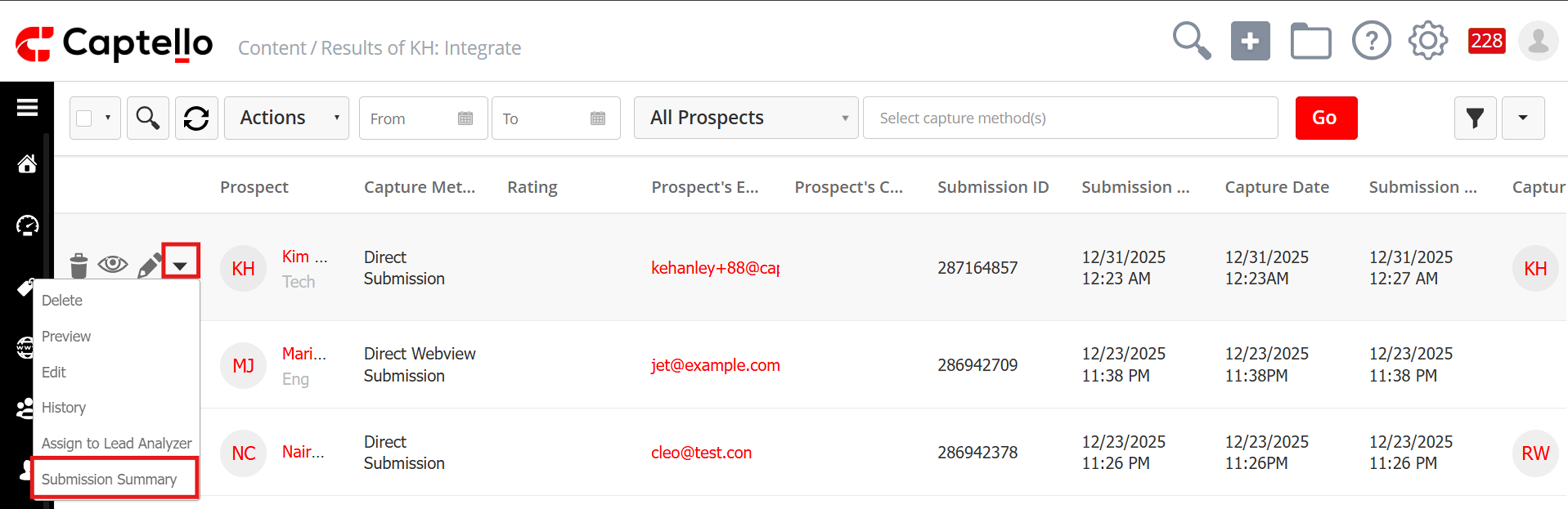
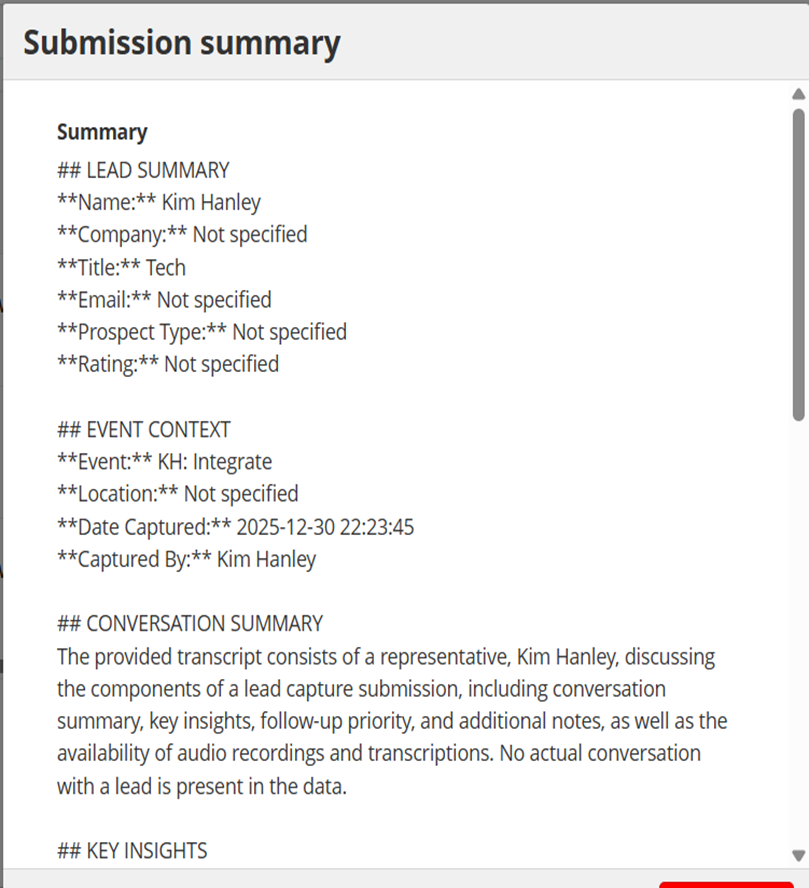
Alternatively, you can scroll right on the submissions until you can see the summary and click it