Exhibitor Portal — Frequently Asked Questions
Last updated: April 6, 2026
Quick answers to the most common questions about using the Captello Exhibitor Portal.
Q1: How do I export my leads?
Leads can be exported as a spreadsheet directly from the web portal. You must be logged in as a Primary or Admin user.
Log in to the web portal as a Primary or Admin user.
Navigate to the Leads page from the left sidebar.
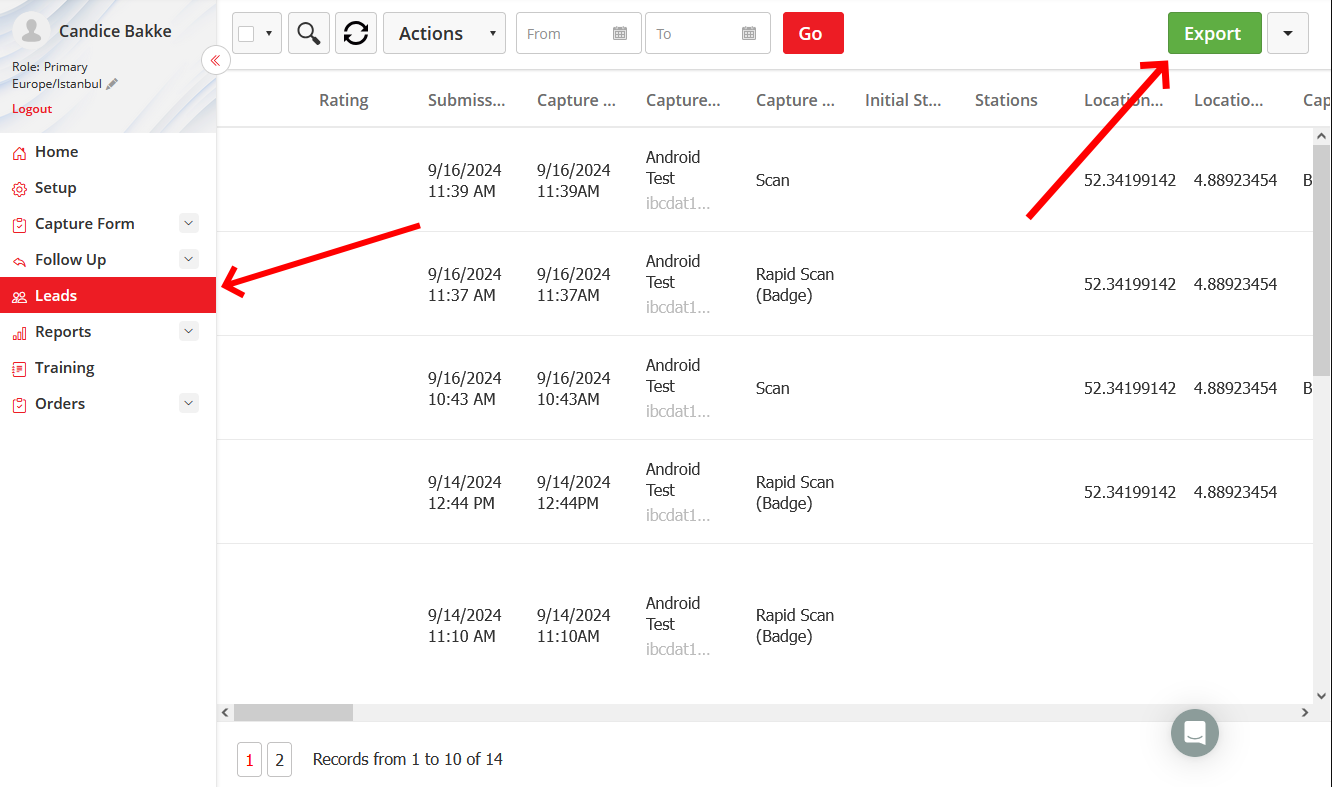
Click the Export button in the top-right corner.
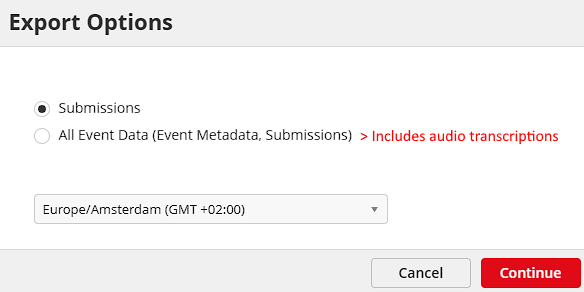
Choose your export type: Submissions (captured lead data only) or All Event Data (includes event name, date, and ID). Click Continue and your spreadsheet will download automatically.
Note
The Leads tab only appears if the event organizer has enabled it for your exhibitor group. Exporting is done through the web app by default — mobile export requires organizer approval.
Q2: How do I add users to the portal?
You can invite team members from the Setup page. Adding users is only possible on desktop — not available on phones or tablets.
Go to the Setup page from the left sidebar (desktop only).
Click the Add User hyperlink above the users list.
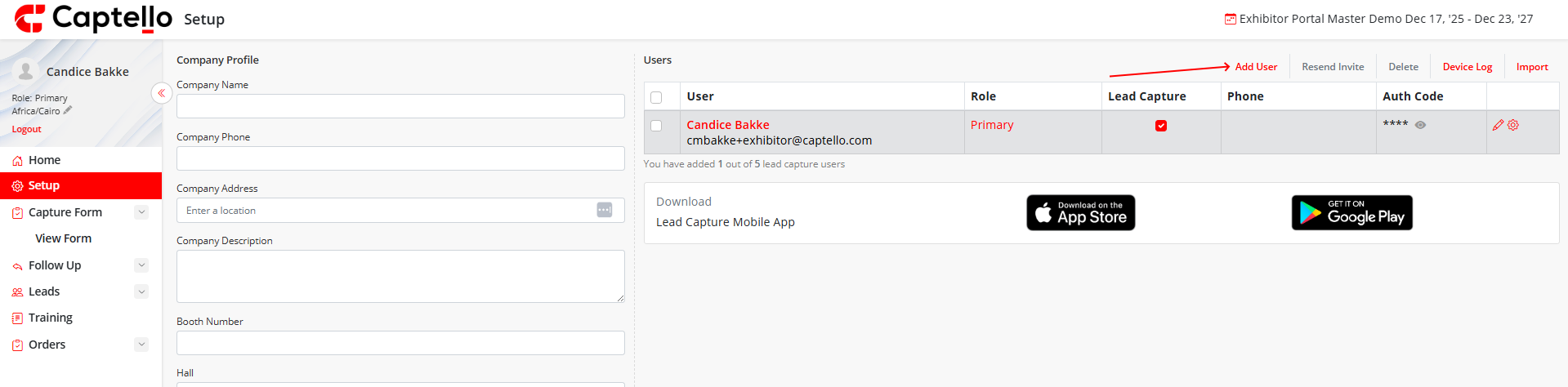
Enter the user's First Name, Last Name, and Email address.
Select a Role for the user (see below).
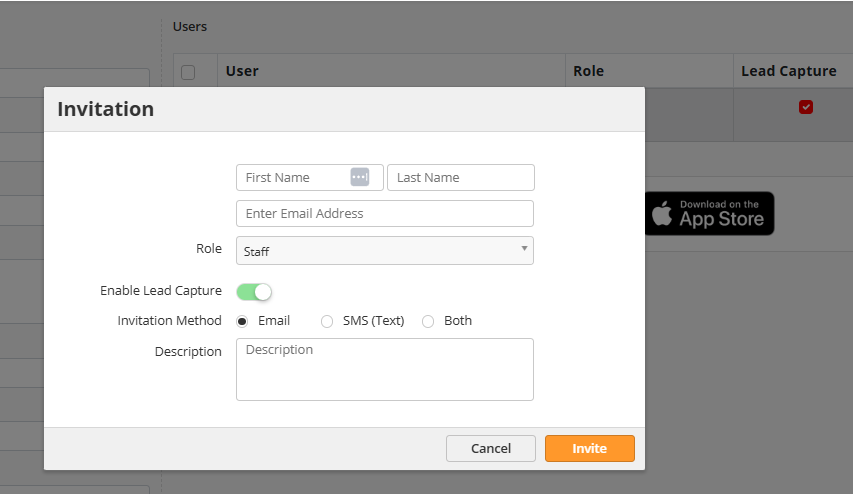
Toggle Enable Lead Capture on if the user needs mobile app access. Choose an invitation method (Email, SMS, or Both) and click Invite.
User Roles
Primary: Full web portal + mobile app. Can add/manage users and transfer the primary role.
Admin: Same as Primary, except cannot replace the primary user.
Staff: Mobile app only. Logs in with email + authentication code. No web portal access.
Reporting: Web portal access limited to the Reports page only.
Tip
If you've reached your user license limit, you may be able to purchase additional licenses depending on your event organizer's settings.
Q3: How do I set up the follow-up email?
The Follow Up page lets you configure an email template and attach documents that are automatically sent to attendees after their lead is captured.
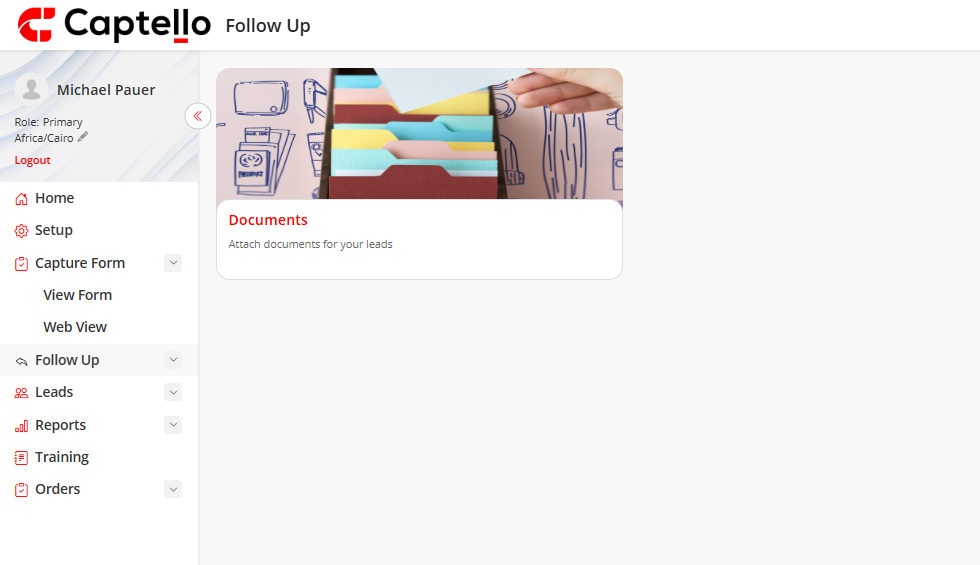
Go to the Follow Up page from the left sidebar.
Click the Email card to open and edit your follow-up email template (only if your event organizer has granted editing permission).
To attach documents, click the Documents card, then click + Add Document in the top-right corner.
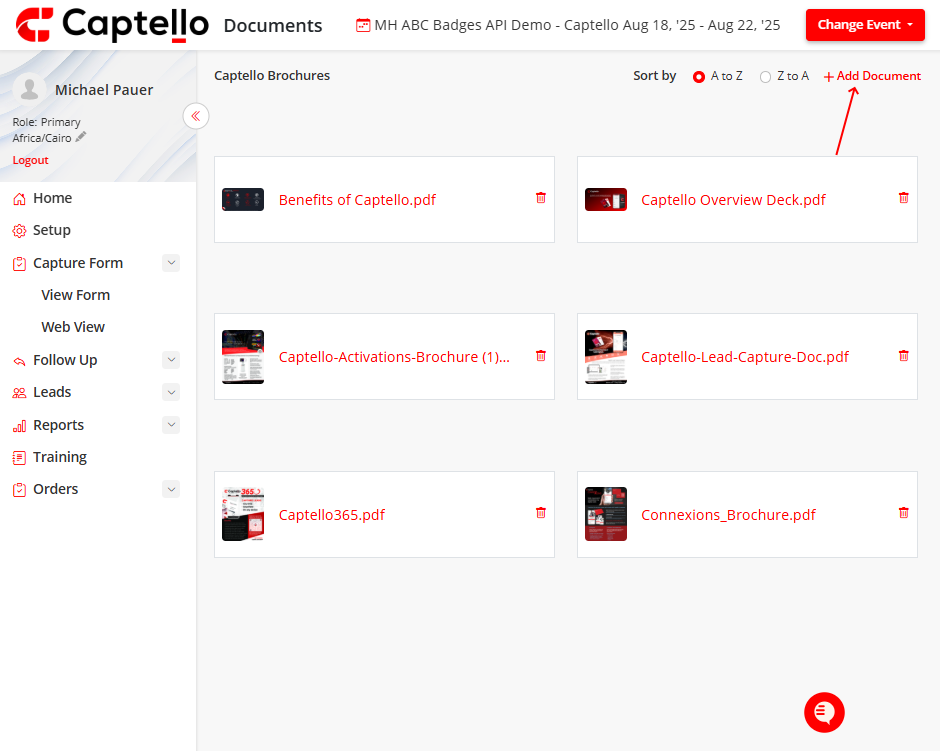
Once saved, booth staff can select documents during lead capture. They will be emailed automatically to the attendee after submission.
Note
Documents can be any file type. The maximum upload size per document is 20 MB. Editing the email template is only available on desktop.
Q4: I can't log in to the Captello app — what do I do?
How you log in depends on your user role.
Primary / Admin users: Log in via the web portal using your email and password. If recently promoted to Admin, check your email for a password-reset link.
Staff users: You do not have web portal access. Open the Captello mobile app and log in with your email address and the authentication code provided by your primary user.
Note
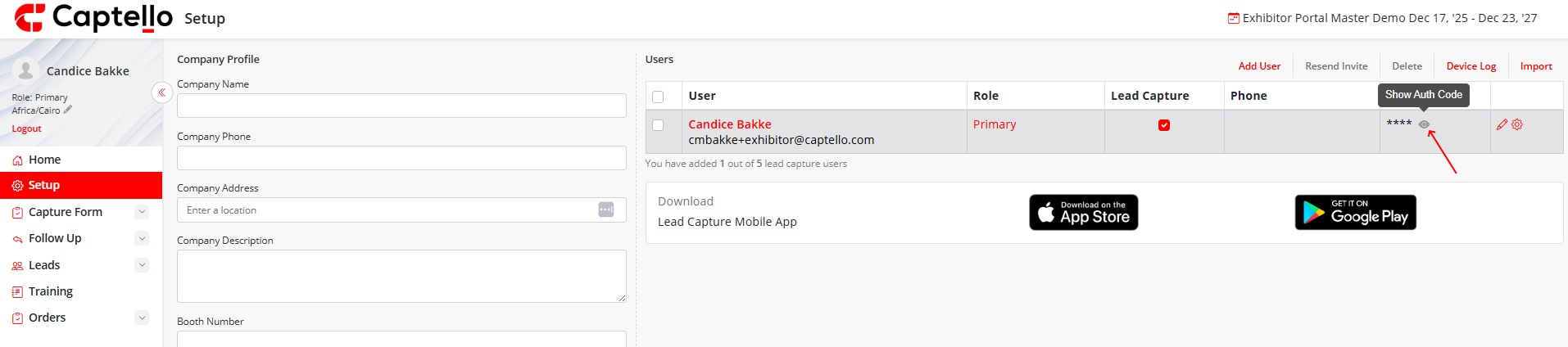
Can't find your auth code? Ask your Primary user to go to Setup > Users and resend your invitation or share your authentication code. Confirm that Lead Capture is enabled on your account.
Tip
Still stuck? Contact Captello Support at +1 (888) 399-6430 x 333 or send an email from the Training page in the portal.
Q5: How do I submit a draft submission?
Draft submissions are leads that were started but not yet finalized. You can locate and submit them from the Captello mobile app.
Open the Captello mobile app and go to your leads list.
Find the lead marked as a draft — these are leads saved but not yet submitted.
Tap the draft to open it and review the form. Fill in any required fields if prompted.
Tap Submit to finalize the lead. It will appear on the Leads page in the web portal.
Note
The Scan Report (under Reports) tracks all badge scans including unsubmitted drafts, so no scan is ever lost even if a lead was not finalized on the spot.
Still need help?
Phone: +1 (888) 399-6430 x 333
Email: support@captello.com
Training videos are available in the Training page of your portal.