On-Input Actions Merge Fields (inc. Use Cases)
Last updated: May 7, 2026
Overview
On-input actions allow you to use merge fields to copy data from one field to another. This can be used to:
Concatenating multiple values to one field within the submission
Mapping lookup values to custom fields
Use different State/Province fields for different countries (If state/province is required for multiple countries in your data flow)
Setup
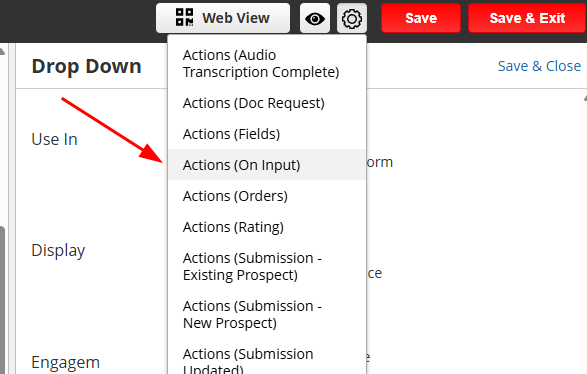
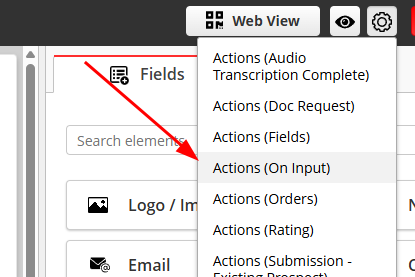
Click the capture form's gear button and click Actions (On Input)
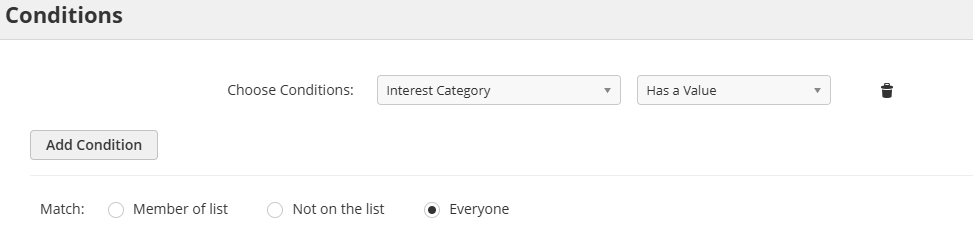
Set your conditions:
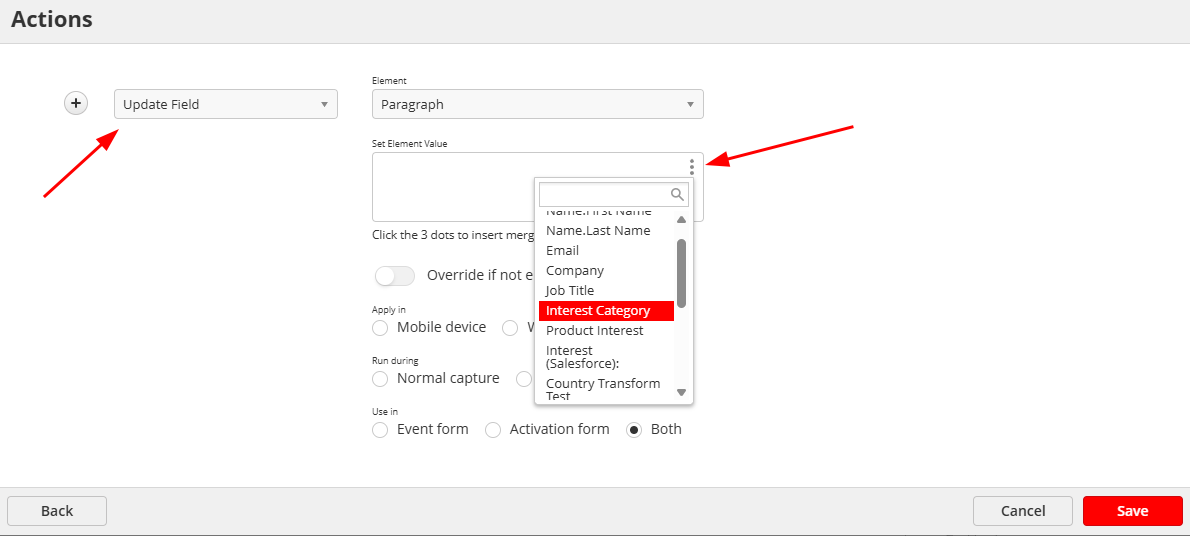
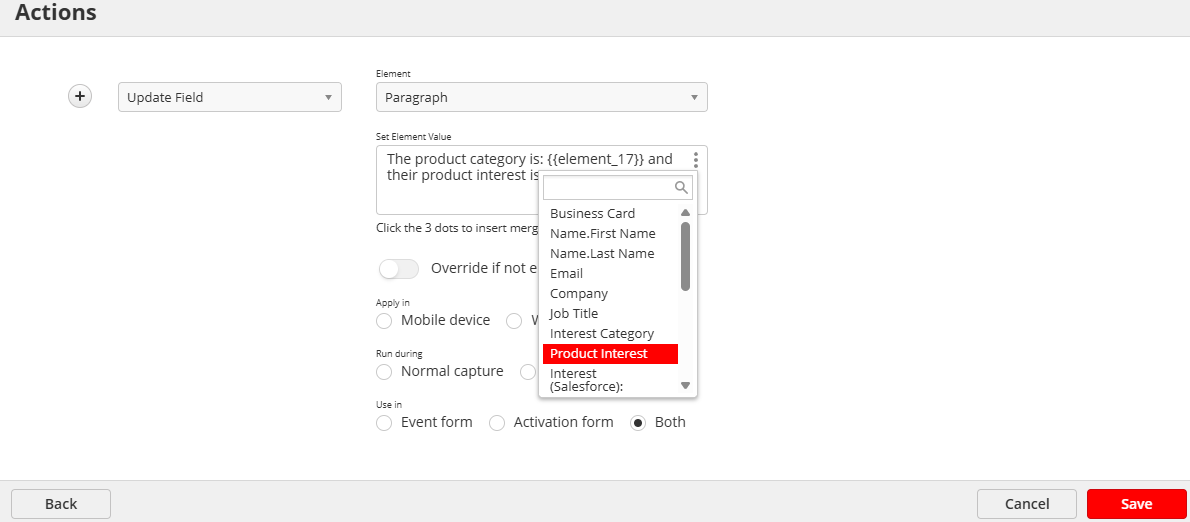
Set the action to Update Field and click the 3 dots to select merge fields to add
Use Cases
Concatenating multiple values in one field
Set your conditions, then select the 'Update field' action, and click the 3 dots to add fields to concatenate.
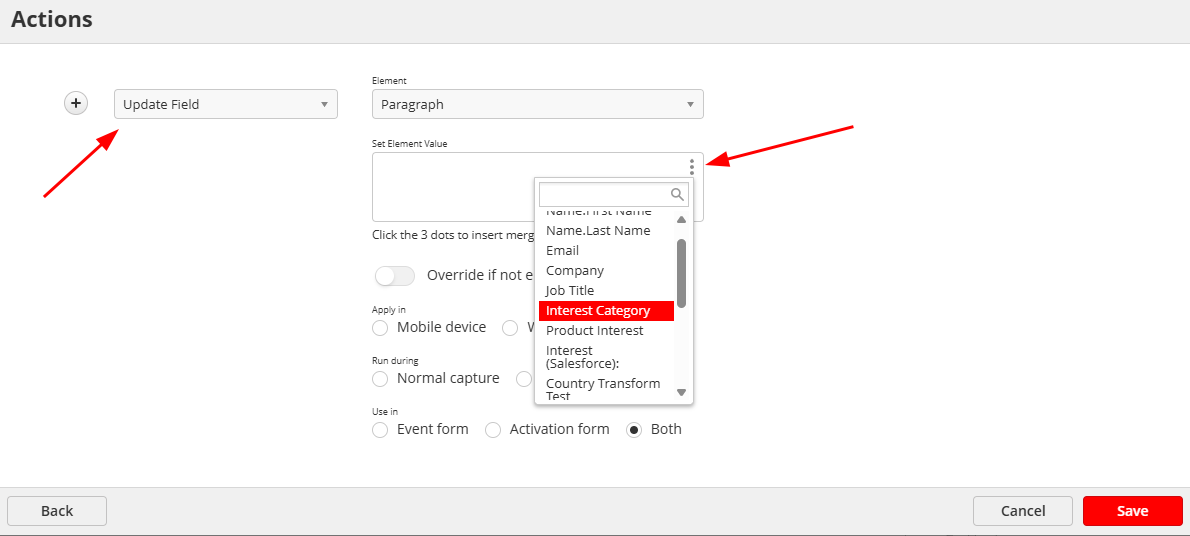
Note: When merge fields are added, they will appear as 'element_#', which is the backend's element ID of the field.
You can then add more elements as needed.
Mapping lookup values to custom fields
Since Lookup mapping only works with Captello standard fields, you would need a standard field to receive the value on the form (such as Text 1 or Large Text 1), but then, you can move the value to another field that's mapped to a custom field as needed.
You can also make the standard field hidden, since it's only acting as a bridge to get the value to the custom field.
Example
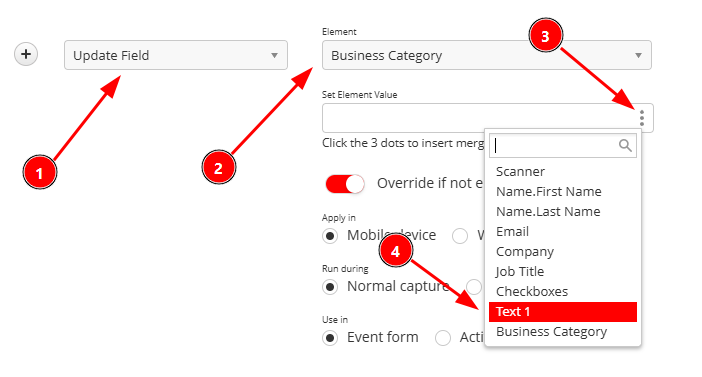
The following example uses a standard field (Text 1) as a bridge to copy the value to a custom field (Business Category)
Create and on-input action
Condition: If Text 1 [has a value],

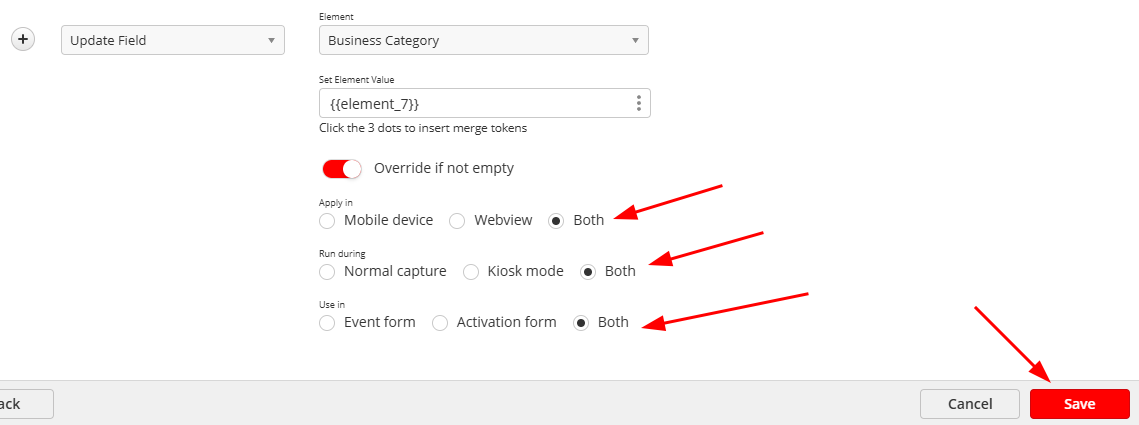
Action: Update Business Category > {Text 1’s mergefield}
It’s also recommended to select ‘Both’ for all modes.
Using different State/Province fields for different countries
This use case helps avoid state code conflicts (Ex. "WA" could be Washington or Western Australia).
Captello Scanners can only recognize one field to receive the value from the API/Enrichment. So, if you have multiple state fields, the scanner always fills the one at the top.
In this case, a 'Scanned State' field is needed, to be used as a bridge field to map the value to other state fields. You would need to create an on-input action for each state field.
Example
The following example shows how to set up the action for 2 state fields, one for the US, and one for Australia:
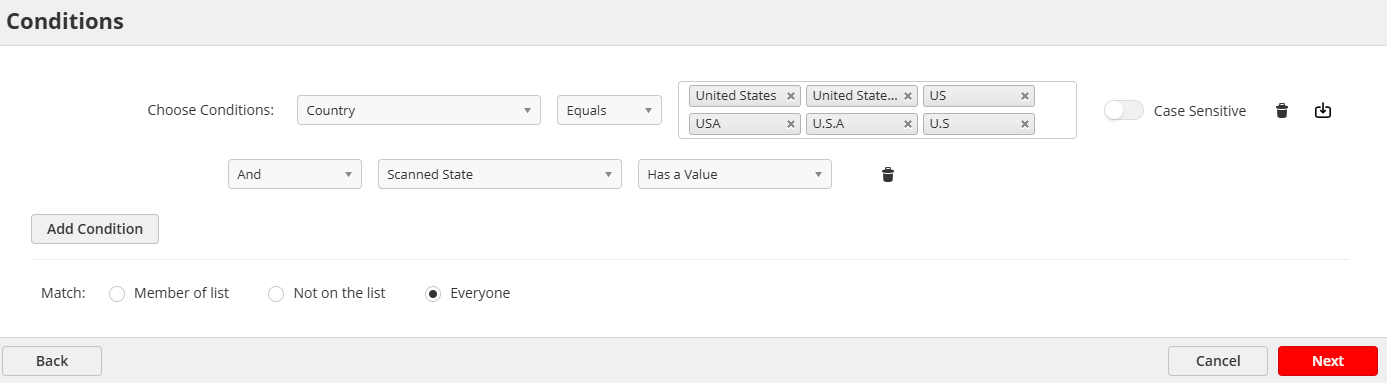
Action #1
Condition: If Country = United States AND Scanned State has a value.
Make sure to add all possible values for USA
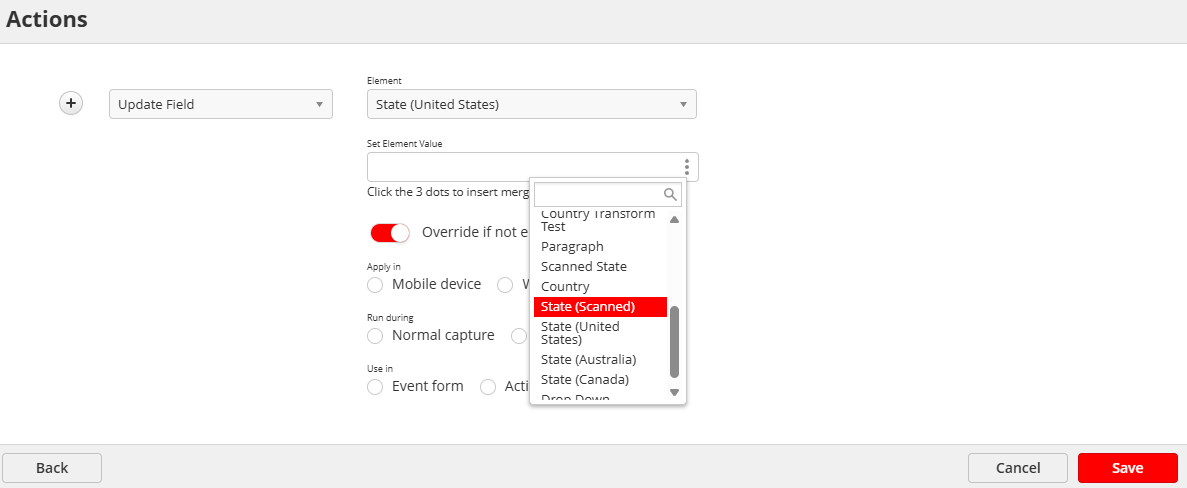
Action: Update field > State (United States) > Scanned State
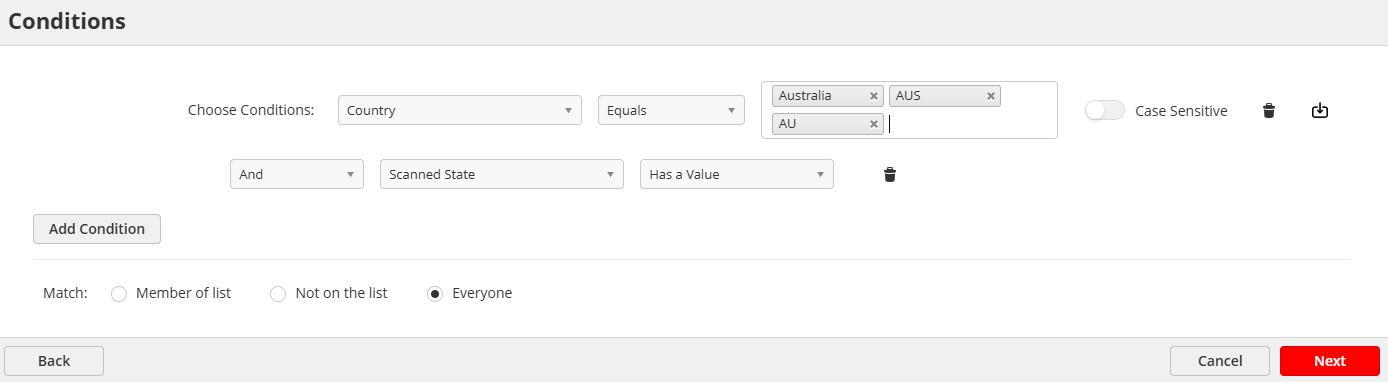
Action #2
Condition: If Country = Australia AND Scanned State has a value.
Make sure to add all possible values for Australia
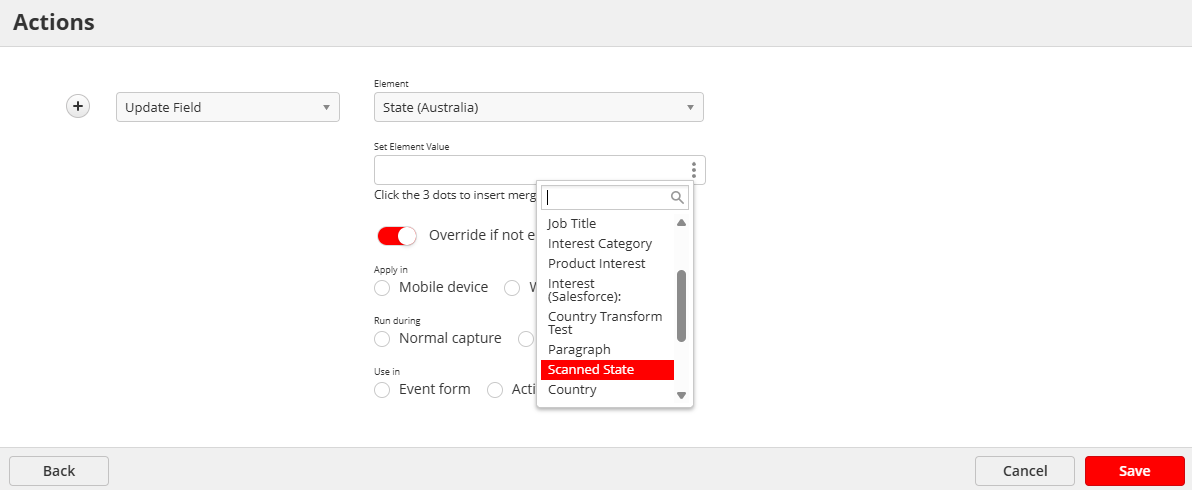
Action: Update field > State (Australia) > Scanned State
Now, if state comes as "WA", the on-input will make sure it's either Washington or Western Australia, based on the country.