How / Can I filter prospects based on (specific) criteria?
Last updated: January 1, 2026
You can filter prospects based on one or more criteria. For example: you can filter the prospects who submitted form A but did not submit form B, or filter the prospects who submitted both form A and B, etc.
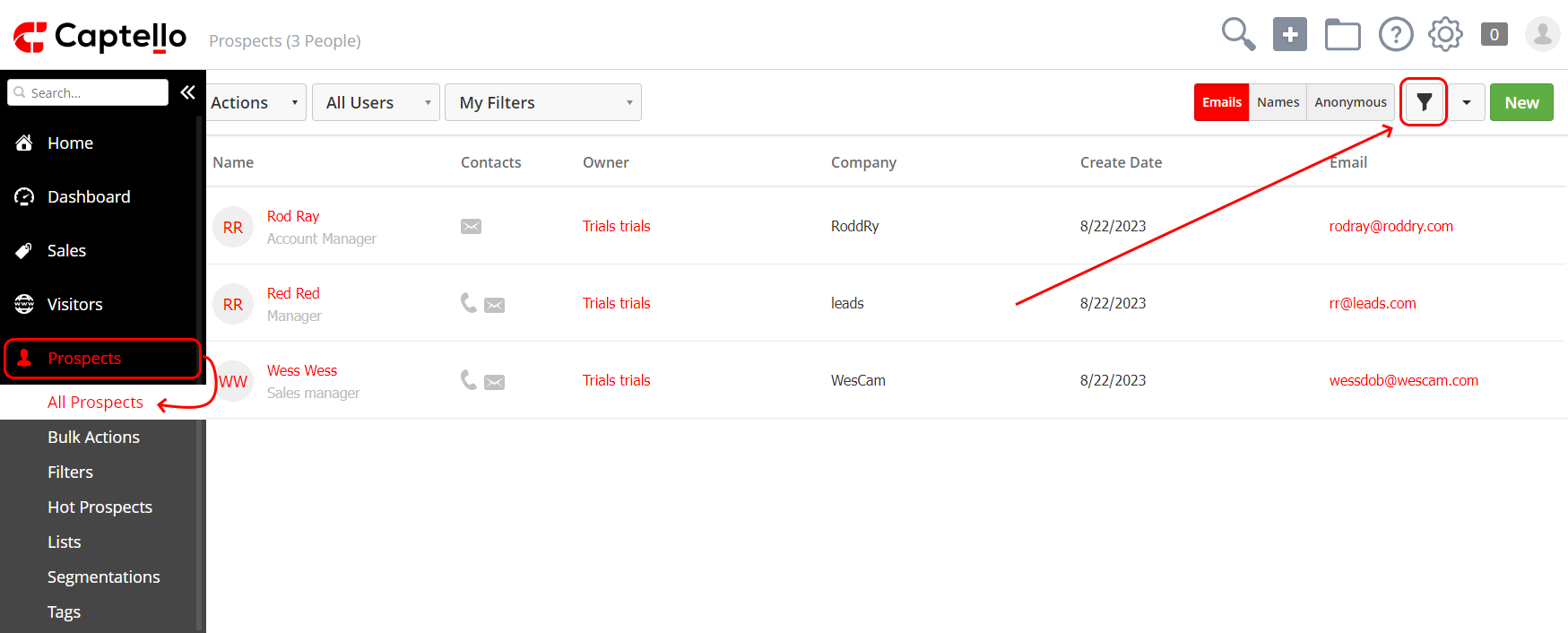
To do that, go to 'Prospects' > 'All Prospects' and click on the filter icon as Shown:
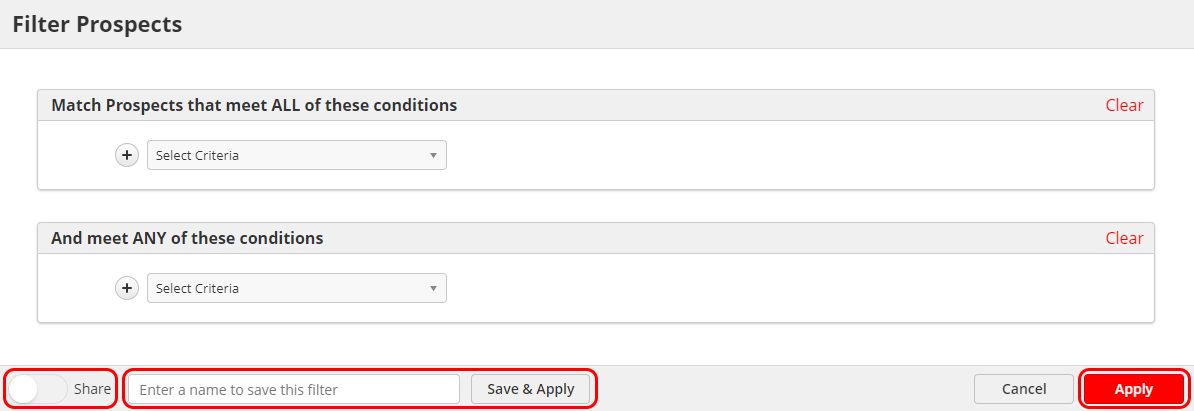
Then you have two filters, the first one is 'Match Prospects that meet ALL of these conditions' in which the prospect must meet all the specified conditions, and the second one is 'And meet ANY of these conditions' where the prospect matches at least one of the conditions that were set.
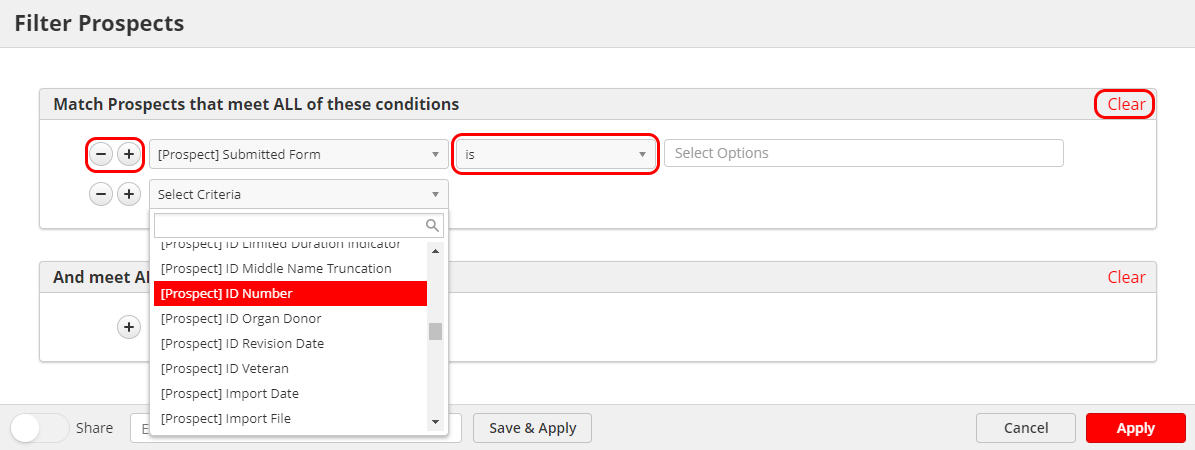
For example: Submitted form > 'is', 'is not', 'is any', 'is any but' > The name of the form in the text box.
You can also click on the '+' sign to add more criteria, the '-' sign to remove any of these criteria, or 'Clear' to clear the filter and start over.
You can click on 'Apply' to view the filtered prospects or Enter a name for that filter and click on 'Save & Apply' to save that filter.
You can also choose to make the filter public to all users by turning on the 'Share' toggle.