Using Captello While Offline
Last updated: July 28, 2026
Summary
Captello does not stop working when offline for the Badge Scanner, the Business Card Scanner and Lists (as long as the list was loaded before going offline).
Activations and Lookup do not work in offline mode.
After scanning leads while offline, you can tap submit. The leads will be saved locally on your device until it becomes online, then they will count as successful submissions, even when the event is connected to an API using a devkit.
Scanning a QR Code / Taking a Picture Using the Business Card Scanner, Smart Scanner or Unified Scanner
The experience will be the same whether you're using the classic QR code scanner, business card scanner, classic smart scanner, or the unified scanner.
Follow the steps below to use Captello while offline:
This also applied to Group Scan and Rapid Scan
Scan leads normally.
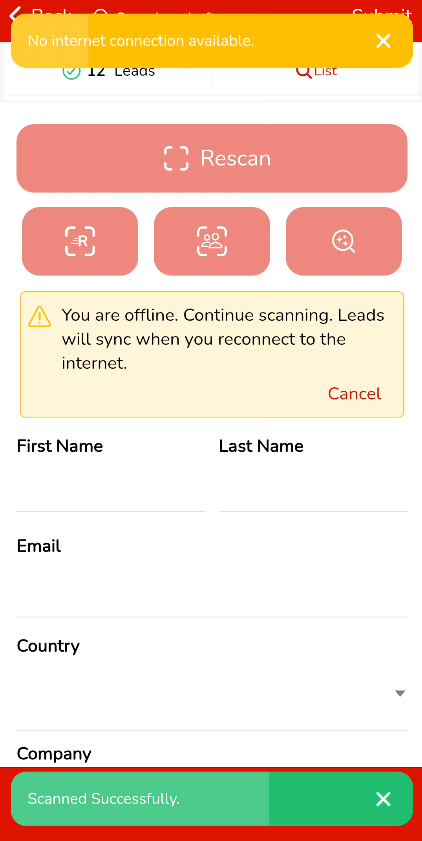
You will get a couple a pop-up and a yellow section on the form letting you know that you are offline. That's okay! Keep filling the qualifying information and click submit. The lead's badge ID is saved locally on your device. Once internet connection is back, all contact information will be added to the lead.
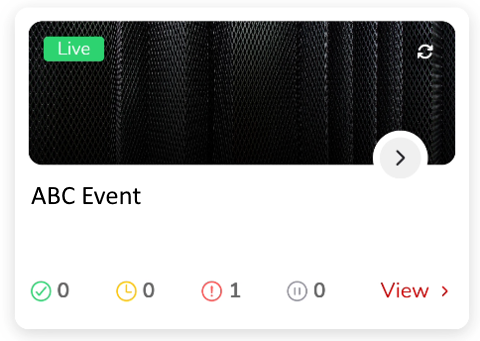
On the Events screen, the submissions show under the red error icon.
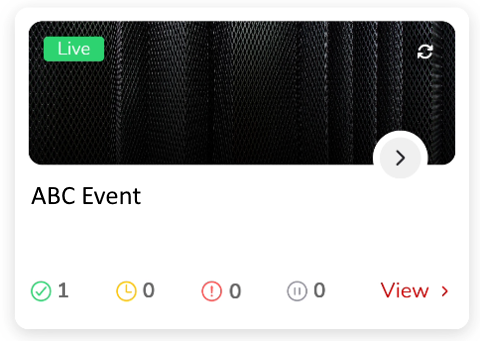
When internet is back, the submission goes to successful submissions.
Lists
Lists will work normally while offline as long as they were loaded before going offline. They will stay loaded and will allow.
On iOS, please make sure NOT to attempt to sync the list while offline, it will cause the list to disappear.
Activations
Activations are not supported in Offline mode.
NPI Lookup
NPI Lookups are not supported in Offline mode.