Setting up Document Sending for Capture Forms
Last updated: April 19, 2026
This feature allows you to share documents (or e-literature) during your event. Documents can be previewed and shared outside the form or selected during form submission to be included in a follow-up email.
Uploaded documents are organized into Document Groups, which can be added to your event’s lead capture form.
Adding Documents to Your Form:
Add a document element to the capture form.
Use the plus icon to upload documents.
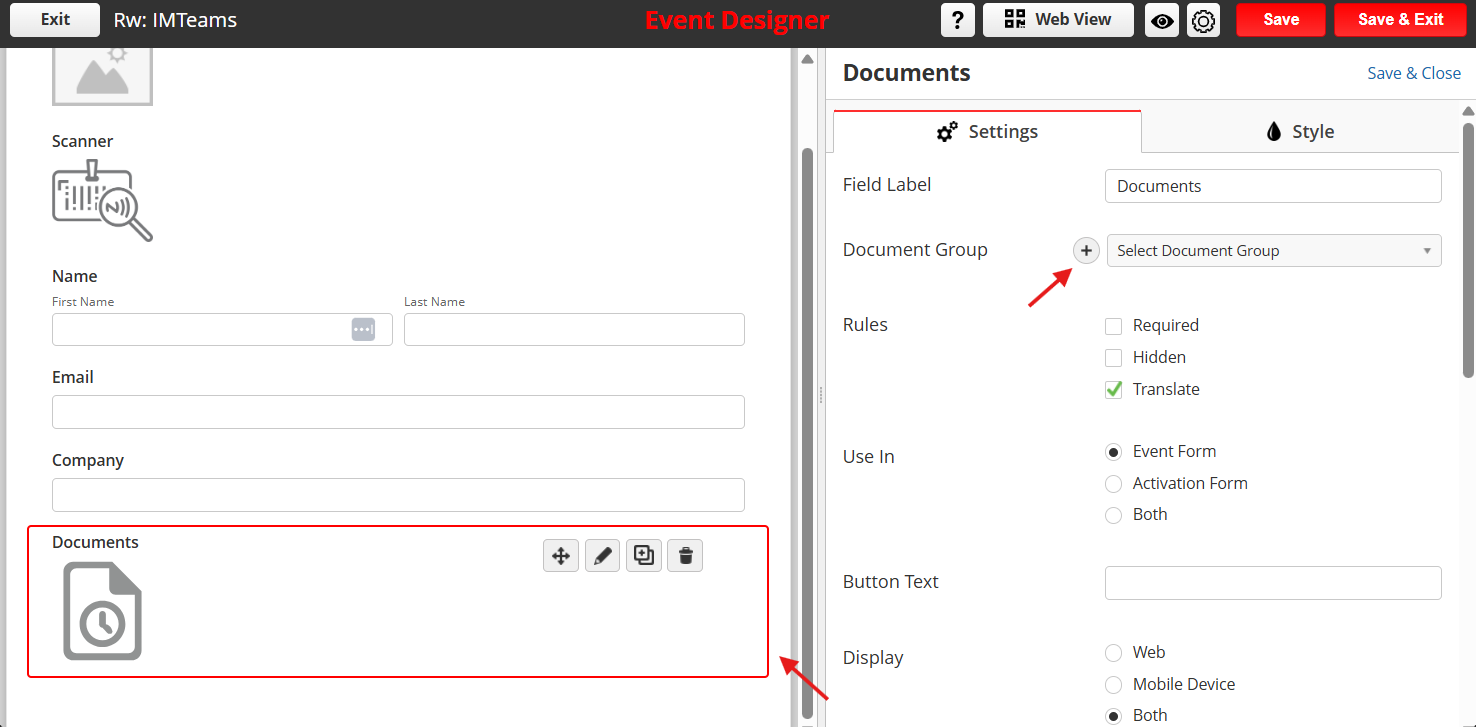
Add the documents using the "+" icon
Finally, name your documents.
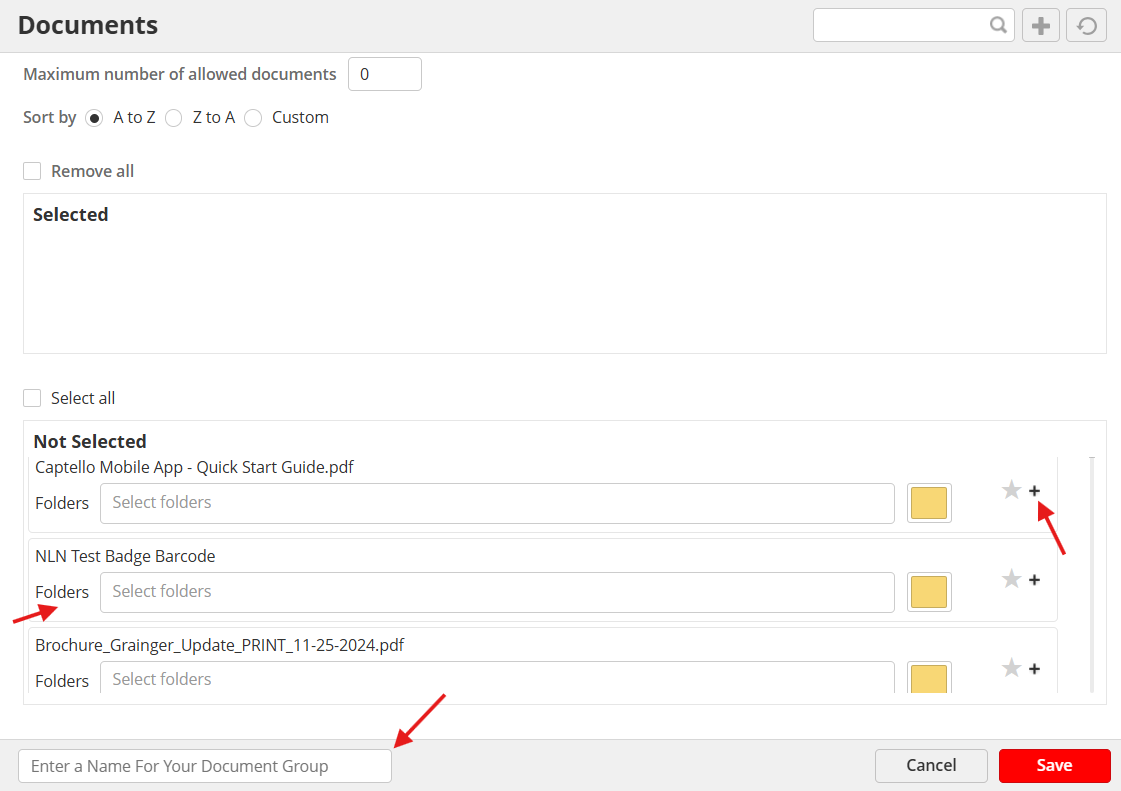
You can create folders to categorize your captured documents. Use the format 'X / Y / Z' to create nested subfolders. For example, 'Catalogs / 2024 / January' helps organize documents in a structured way.
NOTE: You can click the star icon next to a document to set it as selected by default.
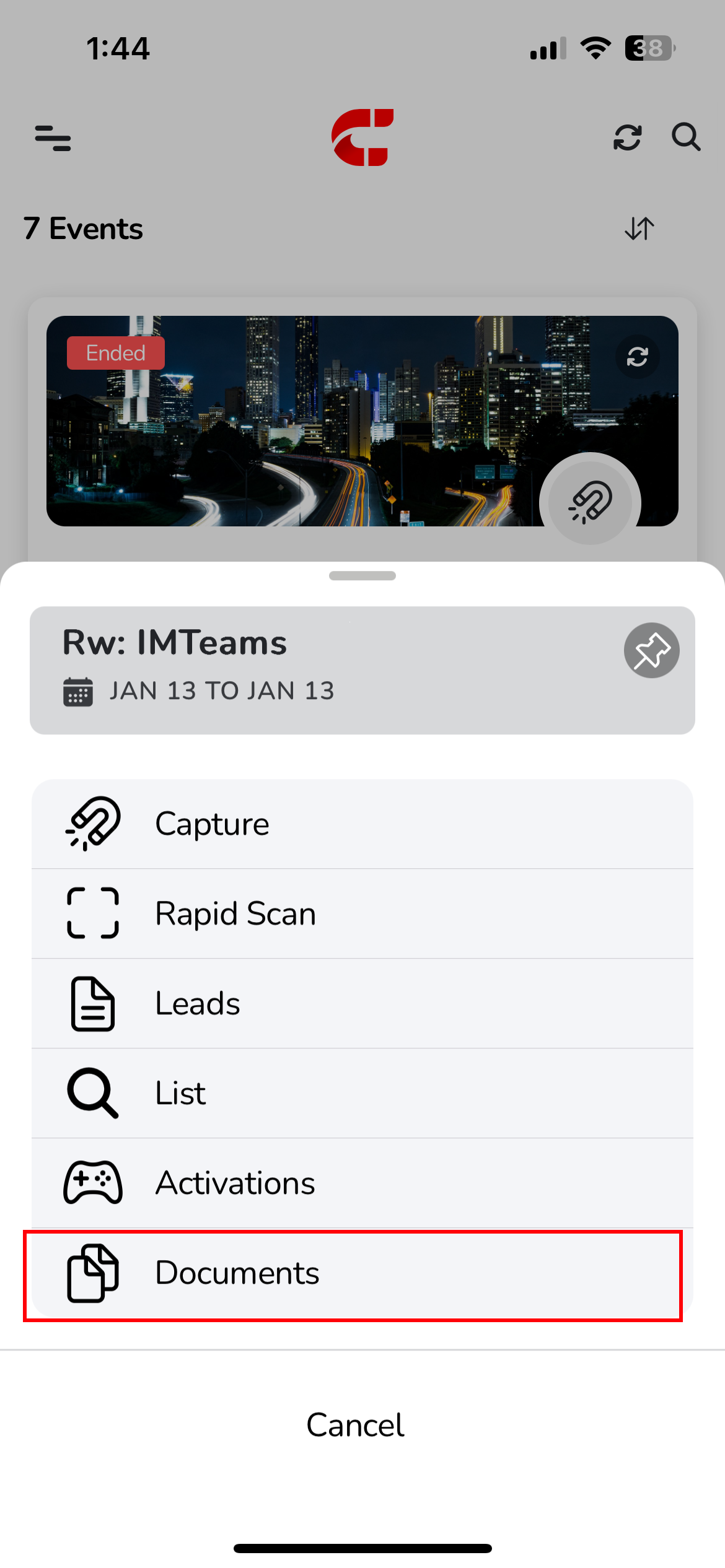
This is how Folders will be displayed on your Captello mobile app:
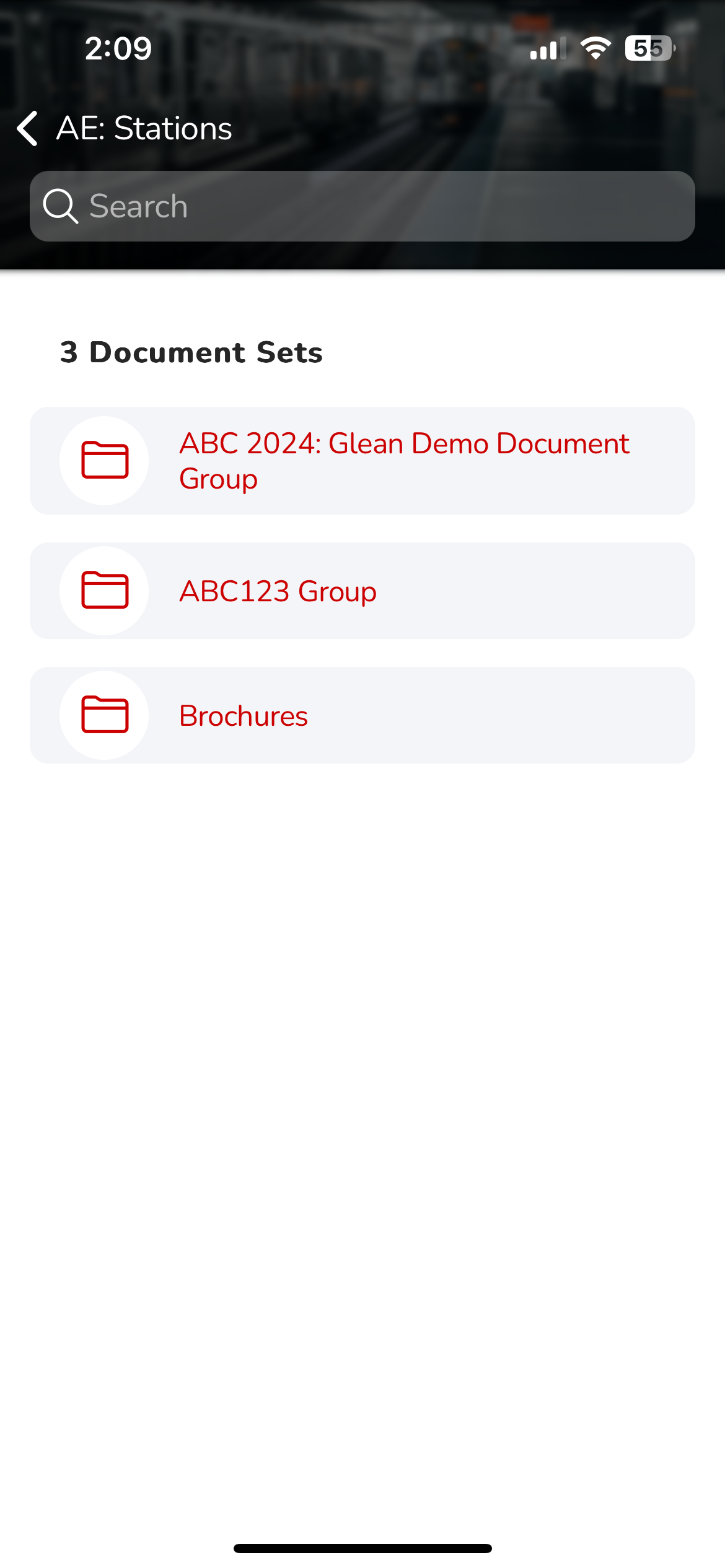
If you don’t have a Document Group, refer to Trackable Content Article on how to add a Document Group and trackable content.
Creating The Email
To include documents in your follow-up emails to leads, follow these steps:
Navigate to your email by going to Content > Emails.
In the email builder, click the Fields button.
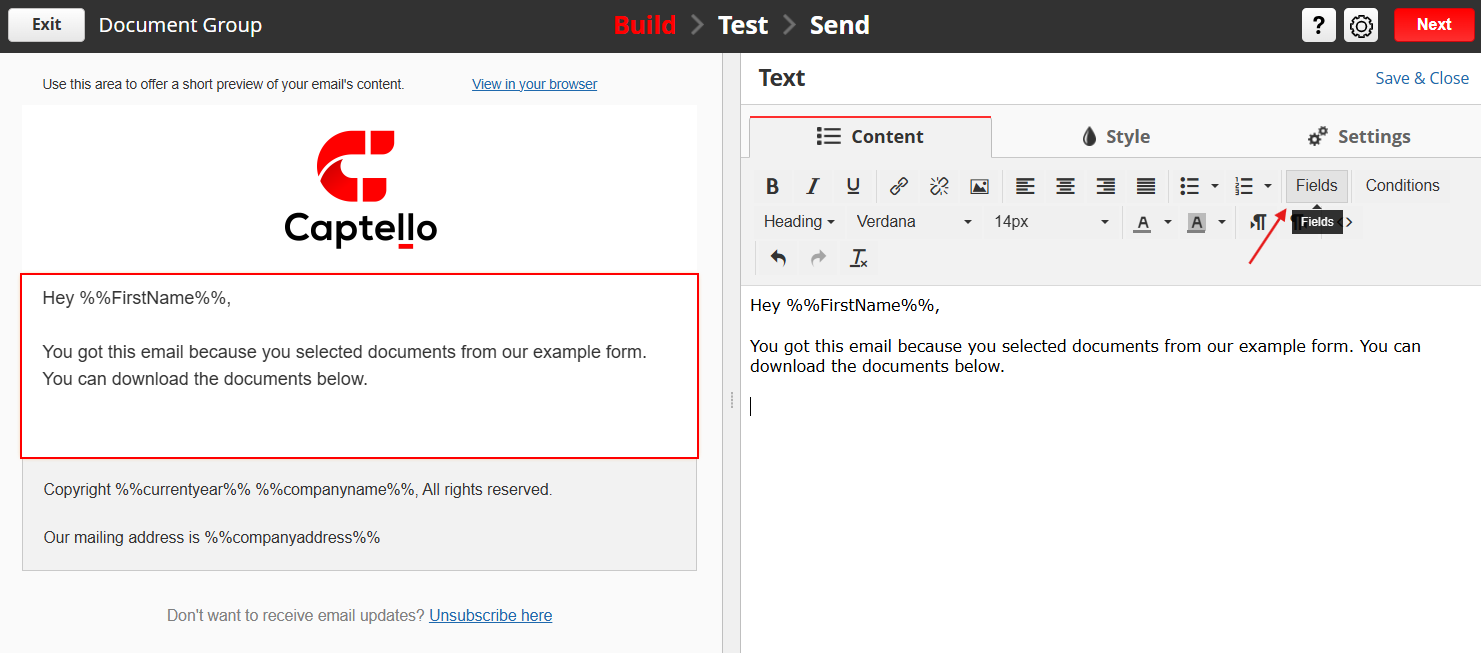
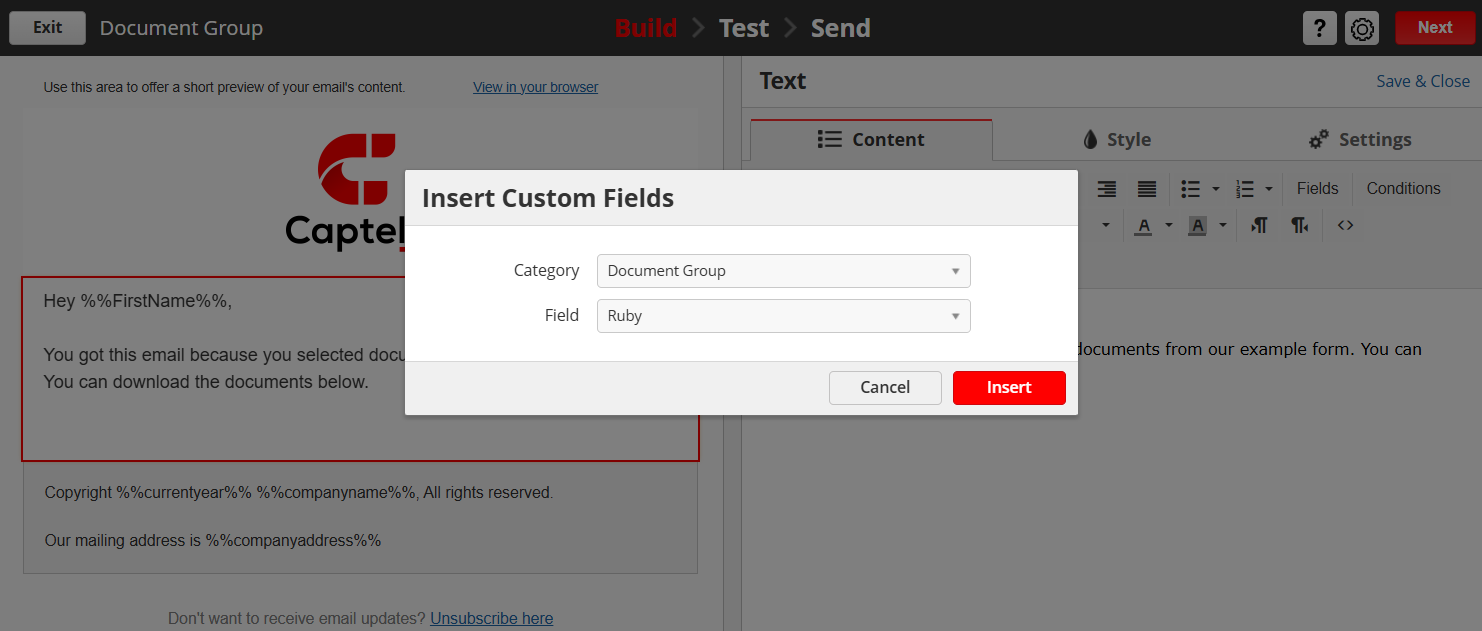
From the Category dropdown, select Document Group.
From the Field dropdown, select your specific Document Group.
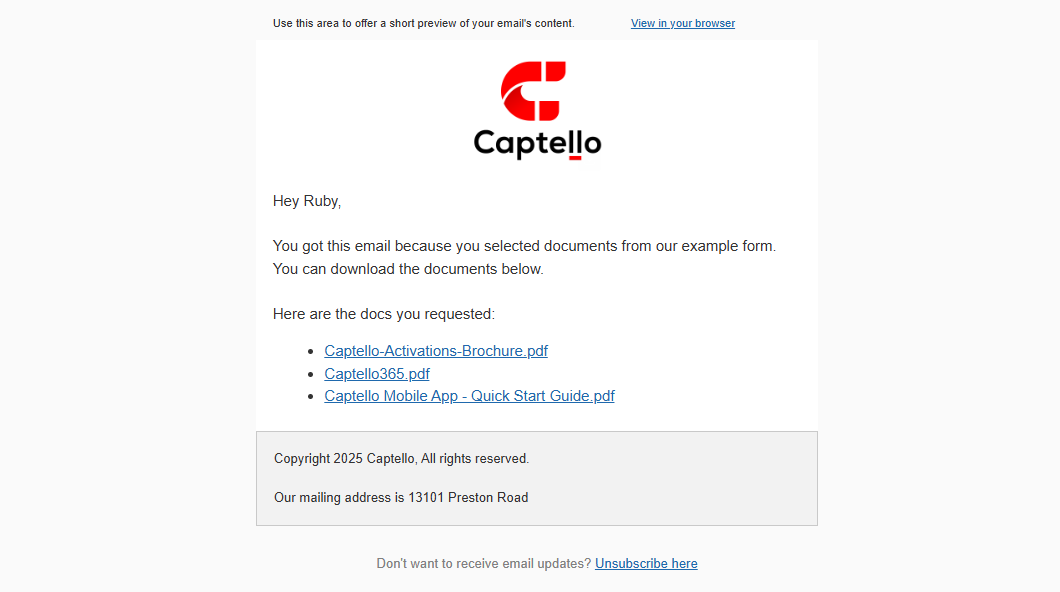
The system will insert dynamic content into your email, formatted as a bullet list
Only the documents selected during form submission will be included in the list.
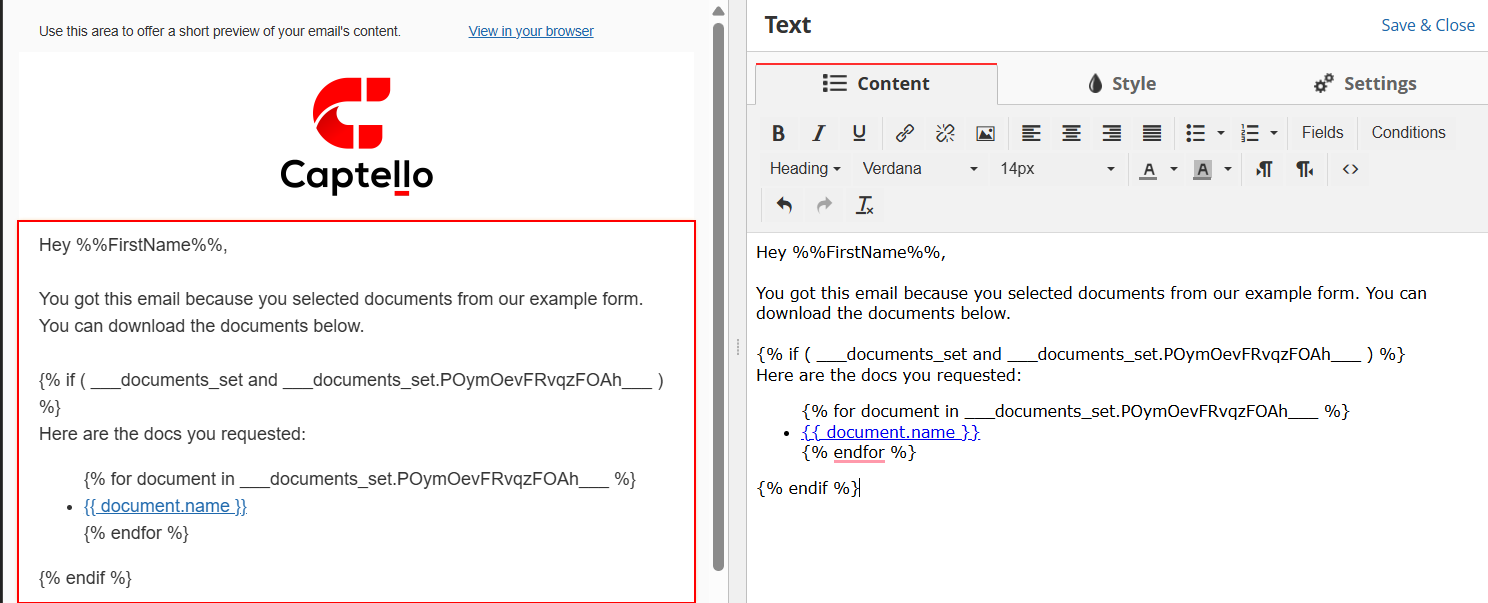
On the recipient’s side, they will see clickable links to their documents, as shown below:
Apply Fulfillment Action
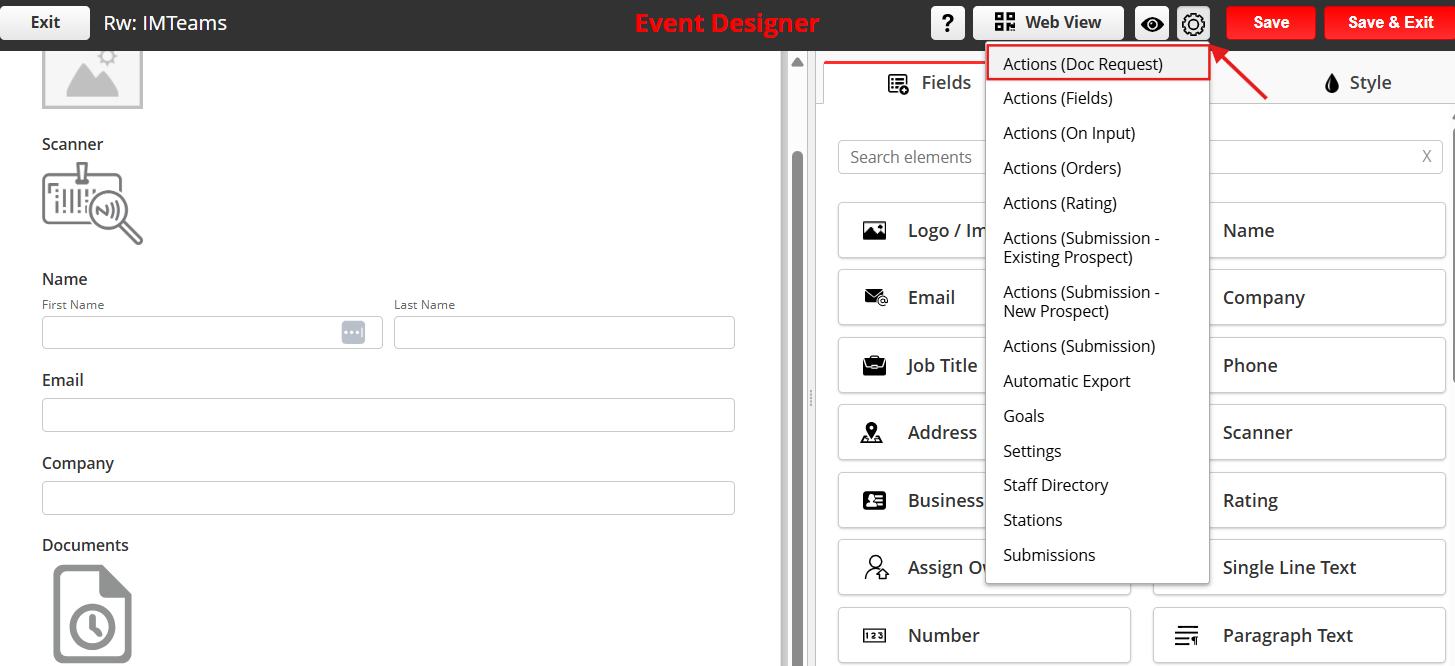
Click the gear icon in your form and select Action (Doc Request).
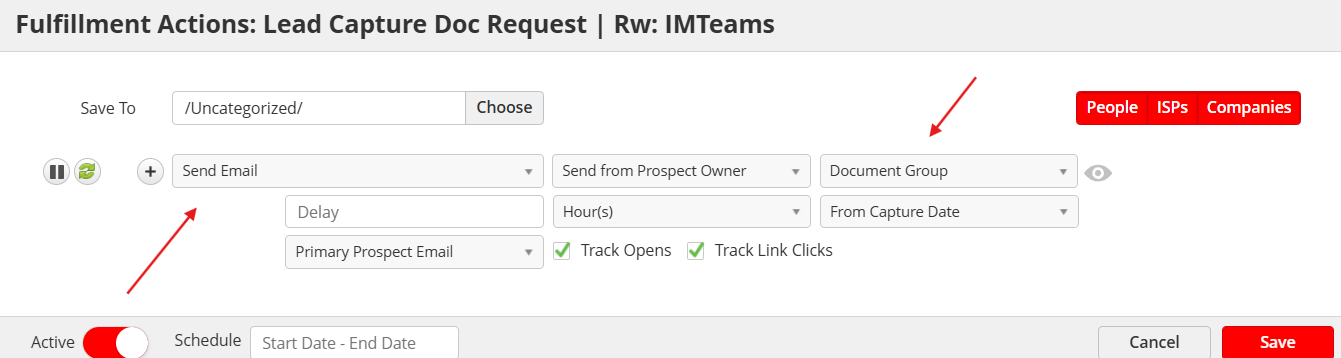
In the action options, choose Send Email and select your document email template
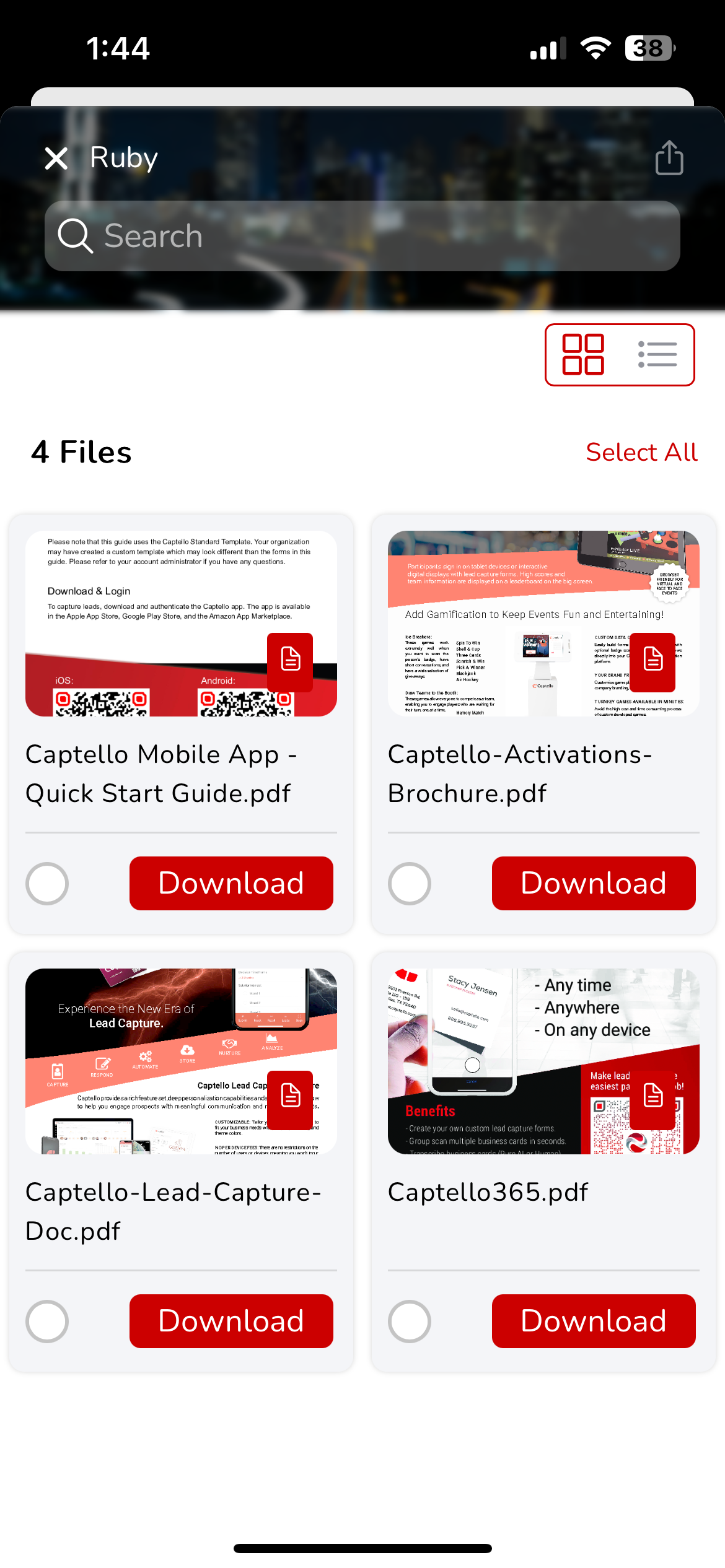
Users can view and download the documents from the Captello mobile app, as shown: